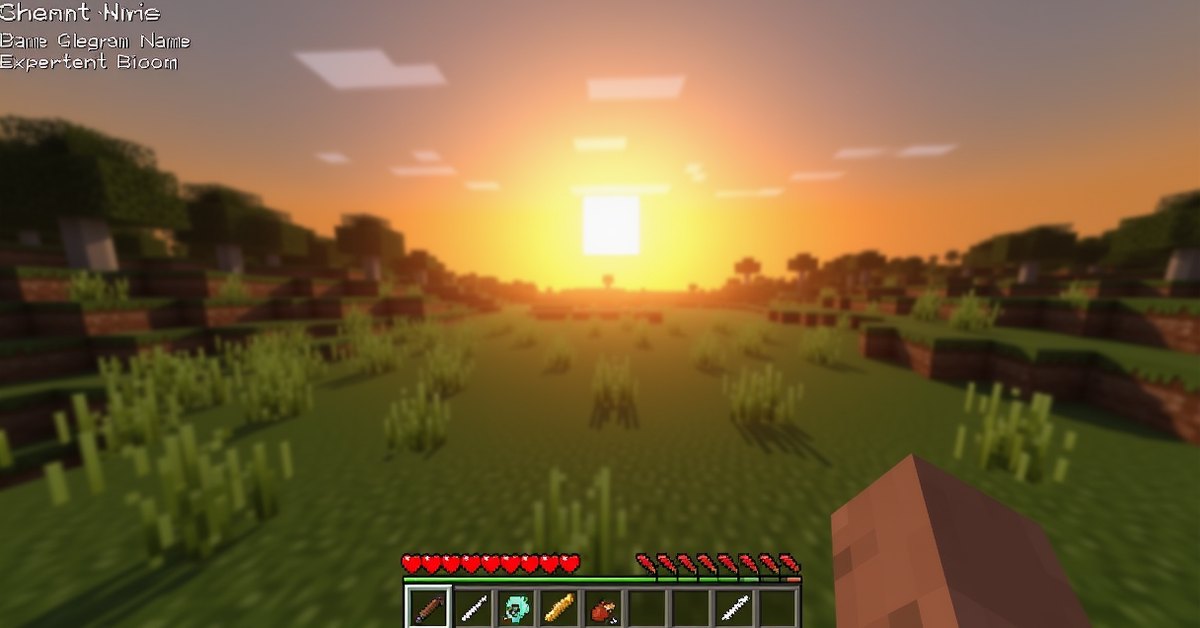
What the HUD is
The HUD, short for heads-up display, is the layer of icons and bars drawn over your view while you play. It tells you the basics you need at a glance: what you’re holding, how much health and food you have left, your armor, and your experience level. It never blocks the world behind it, and in survival mode you can’t turn most of it off.
The debug screen is a separate overlay you open with the F3 key on Java Edition. It covers the screen in raw text: your exact coordinates, the biome you’re standing in, light levels, frame rate, and a long list of technical readouts. Players use it most often to find their way home, because it shows your position down to the block.
This guide walks through every part of the normal HUD first, then the debug screen and the keyboard shortcuts that come with it. It finishes with how the same information works on Bedrock Edition, where there is no F3 key.
Reading the survival HUD
Everything on the survival HUD sits at the bottom and edges of the screen so the middle stays clear. Here’s what each piece means.
The hotbar
The hotbar is the row of nine slots at the bottom center. Whatever sits in the highlighted slot is the item in your main hand. You switch slots with the number keys 1 through 9 or by scrolling the mouse wheel. When you change slots, the item’s name fades in just above the bar for a couple of seconds.
To the left of the hotbar on Java Edition is a single off-hand slot, shown as a small shield-shaped box. Items placed there with the F key, such as a shield, torch, or map, stay in your left hand while your right hand holds something else.
Health, hunger, and armor
Above the hotbar you’ll see two rows of icons. On the left, ten hearts track your health, for a total of 20 health points, since each heart is two points. On the right, ten drumsticks track your food level. When the food bar drops low it stops you from sprinting and eventually starts draining your health. When it’s full and you’ve taken damage, it slowly heals you instead.
Put on any piece of armor and a third row of ten chestplate icons appears above the hearts. These show your armor points, which reduce the damage you take. Full diamond or netherite armor fills the whole row.
The experience bar and level
The green bar that stretches across the top of the hotbar is your experience. The number floating above it in green is your current level. The bar fills as you mine ore, smelt items, breed animals, or kill mobs, and it empties when you spend levels on enchanting or repairing gear at an anvil.
Air, mounts, and status effects
Go underwater and a row of ten bubbles appears above the food bar. They pop one by one as your air runs out, and once they’re gone you start drowning. Climb out and they refill almost instantly.
When you ride a horse, donkey, or other mount, the food bar is replaced by the mount’s jump bar, which charges while you hold the jump key. The hearts switch to showing the animal’s health instead of your own. Your own food level keeps draining in the background even though you can’t see it.
Active potion or beacon effects show as small icons in the top-right corner of the screen, each with a timer counting down. Beneficial effects sit on the top row and harmful ones below.
The crosshair
The small cross in the dead center is your aim point. It marks where you’ll mine, place, or attack. When you point at something you can interact with or hit, the crosshair gives subtle feedback, and an attack-strength bar appears beneath it after you swing so you know when your next hit is fully charged.
The debug screen (F3)
Press F3 on Java Edition and the screen fills with text laid out in two columns. Press it again to close. None of this changes the game; it only reports what’s already happening. The first time you open it the wall of numbers looks like a lot, but most of it falls into a few useful groups.
The left column
The left side is about your world and your place in it. Near the top you’ll see the Minecraft version and your frame rate (FPS), followed by chunk and entity counts that describe how much the game is drawing.
The lines most players actually want are the coordinates. XYZ gives your exact position as three decimal numbers. X runs east and west, Z runs north and south, and Y is your height, where sea level is 63. Below that, the “Block” line rounds those to whole numbers, which is the version you’d use to write down a location.
The “Facing” line tells you which way you’re looking, such as south or west, along with which direction increases or decreases your X and Z. Underneath sit the biome name, the local light level, and the in-game day and time. Light is worth watching, because mobs spawn in the dark and the number tells you exactly how bright a spot is.
The right column
The right side is about your computer and the block you’re aiming at. It lists your Java version, memory use, processor, display resolution, and graphics card. Most of this only matters when you’re chasing a performance problem.
The more useful part appears when you point the crosshair at a block. The right column then shows that block’s name, its coordinates, and its current state, such as whether a door is open or which way a stair faces. Look at water or lava and you get the fluid’s details the same way.
Useful F3 keyboard shortcuts
The debug screen comes with a set of key combos. You hold F3 and tap a second key. These are the ones worth knowing:
F3+Bdraws the hitboxes around every entity, including the line showing where a mob is looking. Handy for redstone and mob farms.F3+Gshows the borders of the 16×16 chunks around you, which helps when you build farms that depend on chunk edges.F3+Hturns on advanced tooltips, adding item IDs and exact durability numbers to every item you hover over.F3+Areloads all the chunks you can see, a quick fix for graphics that have glitched.F3+Treloads your textures and resource packs without restarting the game.F3+Nswaps you between spectator and your previous mode, useful for builders.F3+Qbrings up the full list of these shortcuts in the chat window.
One combo to handle with care: holding F3 + C for ten seconds forces the game to crash on purpose. A quick tap of the same combo just copies your coordinates, so don’t hold it unless you mean to.
Hiding the HUD with F1
Separate from all of this is the F1 key, which hides the entire HUD, including the hotbar, your hands, and the crosshair. Builders and anyone taking screenshots use it to get a clean shot of the world with nothing drawn on top. Press F1 again to bring everything back. It changes nothing about the game; it only clears the view.
Java vs. Bedrock
The F3 debug screen is a Java Edition feature. Bedrock Edition, which runs on consoles, phones, and Windows, has no F3 key and no full debug overlay in normal play.
To see your coordinates on Bedrock, turn on “Show Coordinates” in the world settings, either when you create the world or from the pause menu. That puts a small X, Y, and Z readout in the top-left corner. It’s far less detailed than the Java screen, but it covers the part most players need.
The basic HUD itself, the hotbar, hearts, food, armor, and experience, works the same on both editions. The off-hand slot is the main exception, since it behaves a little differently on Bedrock and isn’t used by as many items.
Tips and common mistakes
If your hearts and food bar suddenly vanish, check whether you’ve pressed F1 by accident. It’s the most common reason players think their HUD broke.
When you write down a base location, copy the whole-number “Block” line from the debug screen, not the long decimal XYZ line. The rounded numbers are easier to read back and get you to the same spot.
Keep an eye on the light-level reading when you’re sealing up a base. A value of 0 means mobs can spawn there in current versions, so any dark corner is a gap in your lighting.
Last, the frame rate shown at the top of the debug screen is the quickest way to tell whether a render-distance or graphics setting is hurting your performance. Watch the number as you change a setting and you’ll see the effect right away.
Frequently asked questions
How do I see my coordinates in Minecraft?
On Java Edition, press F3 and read the “Block” line near the top left. On Bedrock Edition, turn on “Show Coordinates” in the world settings to get a small readout in the corner.
What does the F3 key do?
It opens and closes the debug screen on Java Edition, which displays your coordinates, biome, light level, frame rate, and other technical details. It doesn’t change anything in the game.
How do I hide the HUD for screenshots?
Press F1. That removes the hotbar, your hands, the crosshair, and every bar. Press F1 again to bring it all back.
Why is my hotbar or health bar gone?
You most likely pressed F1, which hides the whole HUD. Press it once more to restore it. Riding a mount also replaces the food bar with a jump bar, which is normal.
Does the debug screen work on Bedrock?
No. Bedrock has no F3 key. The closest option is the “Show Coordinates” toggle in world settings, which shows your position but none of the other debug details.
What does F3 + B do?
It turns on entity hitboxes, drawing a box around every mob and a line showing which way it’s facing. It’s a favorite tool for building mob farms and testing redstone.
Where to go from here
Once the coordinate line and the light reading feel automatic, the debug screen stops being a wall of numbers and turns into a quiet map of where you are and how safe the ground is. Leave it open on a mining trip for a day and you’ll never write down the wrong location again.