What a map actually is in Minecraft
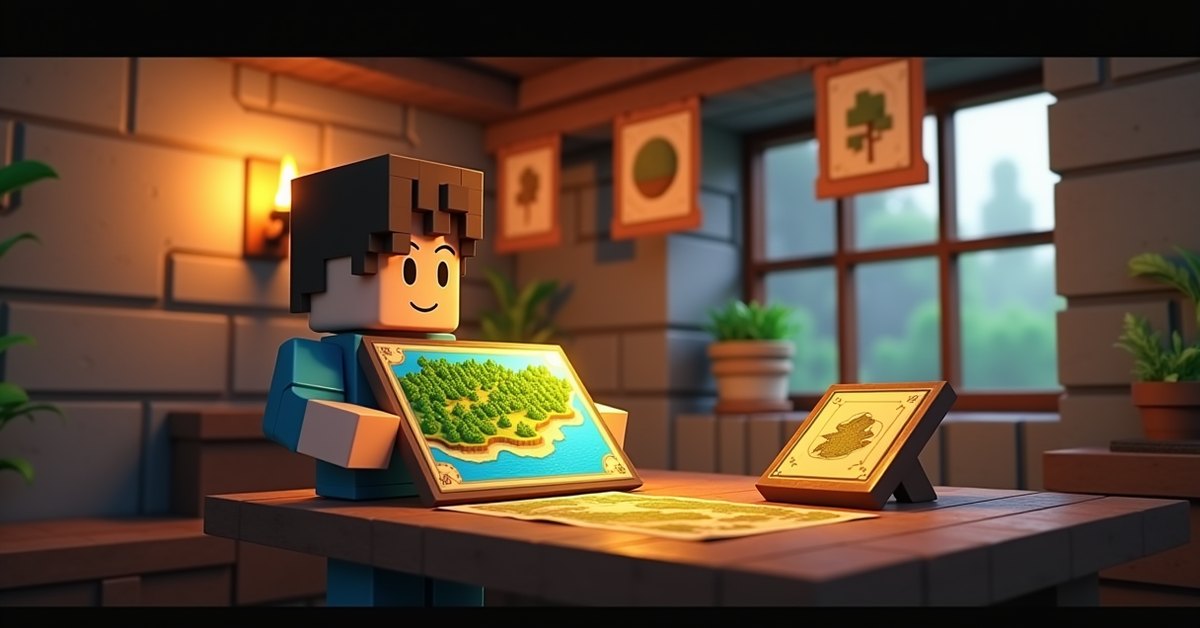
A map in Minecraft is an item that draws a top-down picture of the world around you. When you first make one it shows up blank, and the picture fills in as you walk across the area it covers. Each map is locked to a fixed square of the world, so once you reach the edge, the picture stops growing.
Maps are the main tool for finding your way back home, marking where you have been, and laying out big builds. Pair them with a cartography table and you can zoom out, make copies for friends, lock the view, and add labeled markers.
This guide covers how to craft a map, how the cartography table works, the difference between zoom levels, and the tricks that make maps genuinely useful instead of a square of confusing colors.
How to craft a map
In Java Edition, you craft a blank map from 8 paper around 1 compass. Paper comes from 3 sugar cane, and a compass needs 4 iron ingots plus 1 redstone dust, so a single map costs a small pile of resources up front.
In Bedrock Edition there are two versions. Nine paper in the crafting grid makes a plain empty map with no position marker. Eight paper plus a compass makes an empty locator map, which adds the white arrow that shows where you are. If you want to track your own position on Bedrock, make the locator version.
A freshly made map is blank until you hold it and look around. The spot where you first open it becomes the center of that map, and the world gets carved into a grid based on that center. This matters more than it sounds: if you make your first map standing at your base, your base sits dead center, which is exactly what you want.
The cartography table
The cartography table is the block that turns a basic map into something you can manage. You craft it from 4 wooden planks and 2 paper, with the paper on top. Any plank type works.
Open the table and you get two input slots. The top slot takes a map, and the bottom slot takes whatever you want to combine with it. What you put in the bottom slot decides what happens:
- Add paper to zoom the map out one level.
- Add an empty map to clone the current map into two identical copies.
- Add a glass pane to lock the map so it stops updating.
You can do all of this in the regular crafting grid too, but the cartography table is faster, costs less paper per zoom, and gives you a live preview of the result before you commit.
Zooming out a map
A new map starts at the smallest zoom, which covers a 128 by 128 block square. That is fine for a single base, but it fills up fast once you start exploring. Zooming out trades detail for coverage. Each level out quadruples the area and makes everything on the map look smaller and blockier.
There are five zoom levels in total:
| Zoom level | Area covered | Common use |
|---|---|---|
| Level 0 | 128 x 128 blocks | One base or build |
| Level 1 | 256 x 256 blocks | A base and its surroundings |
| Level 2 | 512 x 512 blocks | Local exploration |
| Level 3 | 1024 x 1024 blocks | Regional travel |
| Level 4 | 2048 x 2048 blocks | Long-distance overview |
In a cartography table, one sheet of paper bumps the map up one level. In the crafting grid, you surround the map with 8 paper to do the same thing. Either way, you still have to walk the new area to fill in the blank parts. Zooming out does not reveal land you have never visited.
A good habit is to keep one fully zoomed-out map for the big picture and a few level 0 or level 1 maps for places you care about, like your base or a village you trade with.
Copying and locking maps
To copy a map, put the drawn map in the top slot of a cartography table and an empty map in the bottom slot. You get two identical copies that share the same view. Anything one copy discovers later shows up on every copy, because they all point at the same map data. This is how you hand a friend a map of your world that updates as either of you explores.
Locking works differently. Drop a glass pane in the bottom slot and the table makes a locked copy. A locked map freezes its picture in place. Even if the terrain changes or you light up a cave that would normally redraw, the locked version stays exactly as it was. Builders use this to snapshot a base before a big remodel, and map artists use it to protect finished pixel art from getting overwritten.
Adding markers to a map
A plain map shows you and not much else. Markers fix that. There are two reliable ways to add them.
Banners
Place a banner in the world, then use a map on it while you are close enough that the banner sits inside the map’s bounds. A colored marker appears at the banner’s exact spot. If you renamed the banner in an anvil before placing it, that name shows on the map next to the marker. This is the cleanest way to label a mineshaft entrance, a friend’s house, or a portal.
Item frames
Put a map inside an item frame on a wall and a green marker appears on every copy of that map, pointing to where the frame hangs. Line up several frames holding sections of a zoomed-out map and you get a giant wall map with a clear “you are here” dot whenever you carry a matching copy. It is the classic base decoration that also happens to be useful.
Explorer maps and treasure maps
Not every map is blank to start. A few come pre-marked with a structure you have to go find.
Cartographer villagers sell explorer maps once they reach the right trade tier. An ocean explorer map points to the nearest ocean monument, and a woodland explorer map points to the nearest woodland mansion. Both are marked so you can sail or walk straight toward them instead of searching blind.
Buried treasure maps work the same way but you find them instead of buying them. They turn up in shipwreck and ocean ruin chests, and they mark a buried treasure chest with a red X. Stand on the X, dig down, and the loot is usually a few blocks under the surface, sometimes including a heart of the sea.
Where maps stop working
Maps are built for the Overworld. In the Nether they break down completely. Instead of terrain you get a red and gray swirl, and the position marker spins in circles rather than pointing anywhere. There is no normal way to make a working Nether map without outside tools, so most players navigate the Nether with signs and marked tunnels instead.
Maps do work in the End, so you can chart the outer islands the same way you would map the Overworld. Just remember that an Overworld map and an End map are separate items tied to separate dimensions.
Tips and common mistakes
Center your first map where you want the middle to be. People often craft a map deep in a cave or far from base, then wonder why home sits in a corner. Open the new map exactly where you want the center, usually your front door.
Do not zoom out a map you still need at full detail. Zooming is one-way in practice. You cannot zoom a map back in, so if you want both a detailed view and a wide view, copy the map first, then zoom the copy.
Carry a map in your off hand. Holding it in the second hand keeps it visible while you mine or fight, which makes it far easier to track where you are heading.
Stack your spares. Empty maps and identical copies stack, so you can keep a small bundle of blanks for marking new regions without clogging your inventory.
Java and Bedrock differences
The biggest split is the position marker. On Java, every map shows your white arrow by default. On Bedrock, only a locator map does that, so a plain empty map will track terrain but never show where you stand. If a Bedrock map feels broken because there is no arrow, you probably made the non-locator version.
Marker behavior for other players is also tighter on Bedrock, where the locator setting controls whether other people appear on a shared map. Outside of those points, crafting, zooming, copying, and locking behave the same across both editions.
Frequently asked questions
How do I make a map bigger?
Add paper to it in a cartography table, or surround it with 8 paper in the crafting grid. Each step zooms the map out one level and quadruples the area it covers, up to a maximum of level 4.
Why is my map blank?
A new map only fills in where you have physically traveled while it covers that ground. Hold the map and walk around the area, and the blank parts paint themselves in as you go.
Can I zoom a map back in?
No. Zooming only goes outward. If you need a closer view again, make a fresh map at the spot, since the original cannot be shrunk back down.
Why does my map spin in the Nether?
Maps are not designed for the Nether. The marker spins and the terrain shows as a red swirl, so they cannot be used for navigation there. Use signs or marked tunnels in the Nether instead.
Do maps update on their own?
Yes, as long as they are not locked. A normal map redraws areas as the world changes around it. A map locked with a glass pane freezes and will not update again.
How do I share a map with a friend?
Clone it. Put your map and an empty map in a cartography table to get two linked copies. Hand one to your friend, and both copies update as either of you explores the marked area.
Maps reward a little planning. Decide where your center should be before you open that first one, keep a zoomed-out copy for the overview, and label the places you visit often with banners. Do that early and you will spend a lot less time lost and a lot more time building.