What a resource pack actually changes
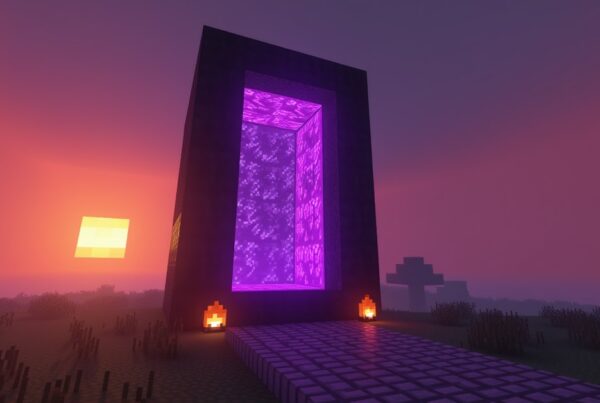
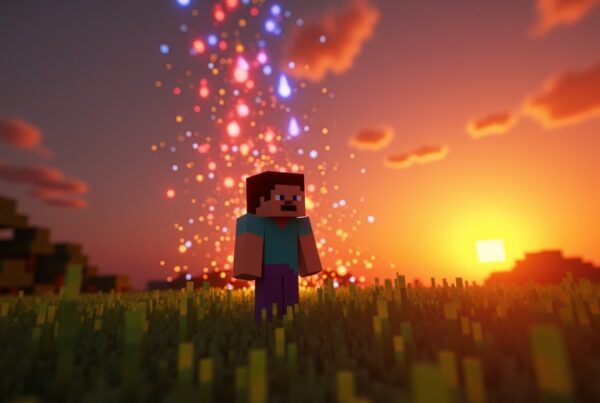
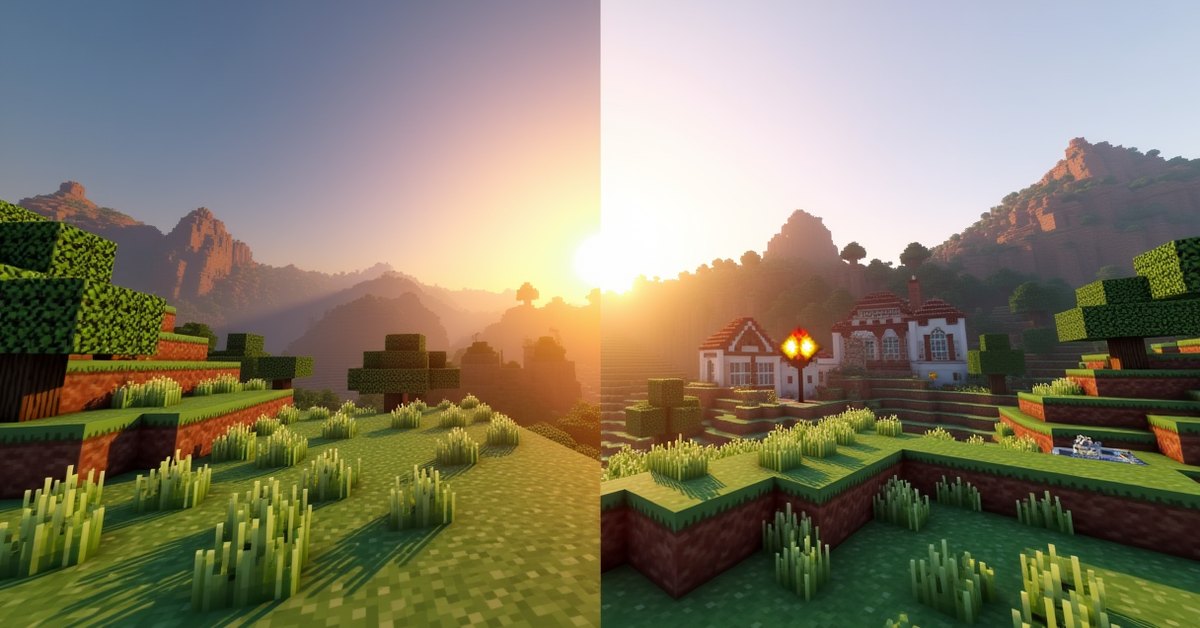
A resource pack changes how Minecraft looks and sounds without touching how the game plays. Swap one in and your dirt, diamonds, and zombies can look completely different, but a creeper still blows up the same way and a furnace still smelts at the same speed.
Resource packs can replace block and item textures, mob and entity models, sounds and music, the language files, fonts, the splash text on the title screen, and even the end poem. What they cannot do is add new blocks, change crafting recipes, or alter game rules. That line matters, and it is the thing most new players get confused about.
If you have heard the term “texture pack,” that is the old name. Mojang renamed the feature to “resource pack” back in version 1.6 once packs could carry more than just textures. People still say texture pack out of habit, and for most purposes they mean the same thing.
Resource packs vs. mods vs. data packs
These three get mixed up constantly, so here is the clean version.
A resource pack is cosmetic. It changes the client side: textures, sounds, models, and other visuals. It is built into vanilla Minecraft, so you do not need any third-party software to use one.
A mod changes the actual code of the game. Mods can add new blocks, mobs, dimensions, and mechanics. They require a mod loader like Fabric or Forge on Java Edition and are a completely different install process.
A data pack sits in the middle. It changes server-side logic using the game’s own systems: loot tables, recipes, advancements, functions, and world generation. Data packs are vanilla, like resource packs, but they go inside a specific world’s folder rather than a global one, and they change behavior rather than appearance.
So if you want diamonds to look pink, that is a resource pack. If you want a new ore that drops pink gems, that is a mod or a data pack.
How to install a resource pack on Java Edition
Resource packs for Java are .zip files. Do not unzip them. The game reads the zip directly.
- Download the pack as a
.zipfrom wherever you got it. - Open Minecraft and go to Options, then Resource Packs. You can reach the same screen from the pause menu inside a world.
- Click “Open Pack Folder” at the bottom. This opens the
resourcepacksfolder inside your.minecraftdirectory. - Drag the downloaded zip into that folder.
- Go back to the Resource Packs screen. The pack now shows on the left under “Available.” Hover over it and click the arrow to move it to the right, into “Selected.”
- Click “Done.” The game applies it right away.
If you ever want to find the folder by hand, it lives at .minecraft/resourcepacks. On Windows you can paste %appdata%\.minecraft\resourcepacks into the File Explorer address bar to jump straight there.
How to install a resource pack on Bedrock Edition
Bedrock works differently. Packs come as .mcpack files, and the install is mostly automatic.
- Download the
.mcpackfile. - Open it. Your device hands it to Minecraft, and the game imports it on its own. You will see a quick confirmation that the import worked.
- To turn it on for every world, go to Settings, then Global Resources, and activate the pack there.
- To turn it on for a single world, open that world’s settings, find Resource Packs, and apply it under “My Packs.”
Bedrock also has a Marketplace with paid and free packs that install through the game itself, no file handling required. Those behave the same way once they are in.
What is inside a resource pack
A resource pack is just a folder of files compressed into a zip. If you crack one open, you will find a predictable structure, and understanding it helps when a pack misbehaves.
At the top level there are usually three things: a pack.mcmeta file, an assets folder, and an optional pack.png image.
The pack.png is the little icon shown next to the pack in the selection menu. It is optional. Skip it and you get a blank icon, nothing more.
The assets folder holds the real content: textures, sounds, models, and language files, organized into subfolders by namespace. Anything the pack does not include falls back to the default game files, so a pack that only retextures diamond ore leaves everything else untouched.
The pack.mcmeta file is a small text file that tells the game two things: a description and a pack_format number. The format number is the part that trips people up, so it gets its own section.
The pack_format number and “incompatible” warnings
Every resource pack declares a pack_format value. That number tells Minecraft which version of the game the pack was built for. Mojang bumps the number whenever it changes how pack files are laid out, so newer game versions expect higher format numbers.
When the pack’s format does not match your game version, Minecraft lists the pack under a yellow “incompatible” heading and warns you before you load it. In most cases you can still apply the pack by confirming the warning, and it works fine because the actual textures have not changed. Sometimes parts of it break, like a custom font or a model that the new version moved. If a pack looks half-applied, a format mismatch is the usual reason, and grabbing a version of the pack made for your release fixes it.
Stacking multiple resource packs
You can run more than one pack at once, and this is genuinely useful. Say you have a full texture pack you like, plus a small pack that only changes the GUI. Load both.
Order decides who wins. In the Selected list, packs at the top override packs below them. So a small GUI pack placed above your main pack will replace the main pack’s interface while leaving its block textures alone. Anything a higher pack does not define passes through to the pack beneath it.
This is how people build a custom look out of several focused packs instead of one giant one. It also means that if a texture is not showing up, checking your pack order is the first thing to try.
Server resource packs
Multiplayer servers can send you a resource pack when you join. Some servers offer it and let you decline. Others require it, and you cannot play there without accepting.
This is how minigame and roleplay servers give custom items their own look, often using a technique that retextures existing items based on small data values. When you leave the server, the pack stops applying and your game goes back to whatever you had set locally. Server packs are downloaded fresh and stored separately, so they will not overwrite the packs in your own folder.
Tips and common mistakes
A few things save a lot of frustration:
- Do not unzip Java packs. The game wants the zip, not a loose folder. An unzipped pack with the correct structure can still work if you drop the folder in, but the zip is the reliable route.
- Higher-resolution packs cost performance. The default textures are 16×16 pixels. A 128x or 256x pack looks sharp but uses far more video memory, and some need extra features from a mod like OptiFine to render correctly.
- A resource pack will never delete or corrupt your world. It only changes display files. If something looks wrong, removing the pack puts everything back.
- If a pack will not show up in the list at all, the zip is probably missing its
pack.mcmetafile or has the wrong internal folder structure. Open it and confirmpack.mcmetasits at the top level, not inside an extra folder.
Frequently asked questions
Are resource packs cheating?
No. They only change visuals, so they give no gameplay advantage in the way mods can. Most servers allow them freely. A few competitive servers ban certain packs that make things like ores or player outlines easier to see, so check a server’s rules if you are unsure.
What is the difference between a texture pack and a resource pack?
They are the same thing under two names. “Texture pack” is the old term from before version 1.6, when packs could only change textures. “Resource pack” is the current name and covers textures plus sounds, models, fonts, and more.
Why does my resource pack say it is incompatible?
Its pack_format number does not match your game version. You can usually load it anyway by confirming the warning, but for the cleanest result, download a version of the pack made for the Minecraft release you are running.
Can I use more than one resource pack at the same time?
Yes. Add them all to the Selected list and arrange the order. Packs higher in the list override packs lower down, and anything a top pack does not change falls through to the one below it.
Where is the resource packs folder on Java?
It is at .minecraft/resourcepacks. The fastest way to open it is the “Open Pack Folder” button on the Resource Packs screen inside the game.
Do resource packs work the same on Java and Bedrock?
The idea is the same, but the files and install steps differ. Java uses .zip files dropped into a folder. Bedrock uses .mcpack files that import automatically and a Marketplace for one-click packs.
Will a resource pack slow down my game?
The default pack will not. High-resolution packs can, because larger textures use more memory. If your frame rate drops after adding a pack, try a lower resolution version, such as 32x instead of 128x.
The bottom line
A resource pack is the low-risk way to make Minecraft yours. Nothing about your save or your gameplay changes, so you can swap packs freely until you find a look you like, then stack a couple of focused packs on top to fine-tune it. If a new one ever misbehaves, the fix is almost always the format number or the pack order, not the pack itself.